Purchase Order Reconciliation Process
Last revised September 30, 2026
What is PO Recon?
PO Recon is a Reconciliation Process where PeopleSoft closes purchase orders which have had no activity, meaning invoices or change orders, for a certain period of time. Reminder: Purchase orders should be closed or rolled annually. Closed POs in PeopleSoft are then sent back to myUF Marketplace to update the status there. This process usually runs once a year at Fiscal Year End. In preparation for Workday, PO Recon will run more often. This year it will run February, August and possibly October of 2026. In 2027, it will run more often.The next PO Recon will run on Thursday, October 15, 2026 to close POs with no Activity (invoices or change orders) since January 1, 2026.
The schedule and procedure is as follows:
- Click here for the list of POs to Close: The PO Recon Report.
- NOTE: Click DOWNLOAD FILE to open.
- There will be a Zoom to review PO Recon on Monday October 5, 2026. The link will be posted on the Home Page of myUF Marketplace.
- Please open a ticket with the Finance Hub for any POs to not close and add “PO Recon Do NOT Close” in the Subject.
- Any POs to not close will need a justification to stay open and will be reviewed by Procurement.
- The deadline for requests to not close POs is Tuesday October 13, 2026, end of business day.
- PO Recon will run Thursday October 15, 2026 to close these purchase order
To review the report:
- In the PO Recon Report:
- Find your PO Business Unit on the left-hand column (First four digits of your Dept ID)
- In the same row, go to the right-hand column, and doubleclick on the Count of POs in the right-had column to get a list of PO numbers that will be closed:


2. Run the query UF_PO_OPEN_PO_BY_BU for the same PO Business Unit to get a list of all OPEN POs with description and supplier for the same PO Business Unit.
If you have the UF FI Query Viewer role in myUFL, you can use this query to find ALL your open purchase orders: UF_PO_OPEN_PO_BY_BU
-
- Navigate to Menu > Financials > Reporting Tools > Query > Query Viewer to find queries.
- Enter your PO Business Unit to get results. PO Business Units are the first four digits of your Dept ID.
a. For further analysis, add a column to these results to do a vlookup with the PO Recon Results to identify which POs will close: (Note: Convert PO numbers to Numbers first.)

b. After reviewing supplier and description, and taking any additional steps below, for any you need to stay open, please open a ticket in the Finance Hub per the instructions below and attach this list, highlighting the POs to keep open. DO NOT SEND A SCREEN SHOT – we need an Excel spreadsheet. Please include why they should stay open.
Procurement Reconciliation Process Q and A
1. I want a PO to stay open, but it is on the PO RECON list. How can I make a request to keep a PO out of the PO RECON process and not be closed?
- Please open a ticket with the Finance Hub for any POs to not close and add “PO Recon Do NOT Close” in the Subject.
- Any POs to not close will need a justification to stay open and will be reviewed by Procurement.
- Please include the four-digit PO Business Unit, PO number, and a business reason the PO should not be closed.
- Please only include POs on this list.
- Please do not send screen shots – please send an Excel or Word list.
2. How can I see the status of a single PO in my PO Business Unit?
In myUFL:
To review a purchase order in PeopleSoft myUFL, navigate in myUFL to Main Menu > Financials > Purchasing > Purchase Orders > Review PO Information > Purchase Orders and enter your PO Business Unit. Here you will find all POs regardless of their status or age.
- POs in Complete status are closed and cannot be used to pay a vendor and have been relieved of encumbrance.
- POs in Dispatched status are open to have invoices paid against them and can receive change orders.
- To see a list of Dispatched (open) POs, enter your PO Business Unit such as 1638, for example, and change the Status = Dispatched.
Using Queries in myUFL:
If you have the UF FI Query Viewer role in myUFL, you can use this query to find your open purchase orders: UF_PO_OPEN_PO_BY_BU
- Navigate to Menu > Financials > Reporting Tools > Query > Query Viewer to find queries.
- Enter your PO Business Unit to get results. PO Business Units are the first four digits of your Dept ID.
For a full list of PO Business Units, please use the query UF_PO_BUS_UNIT_TBL.
This query will show you Distribution Lines for your open POs including descriptions, supplier, ChartFields and PO Date when the PO was created.
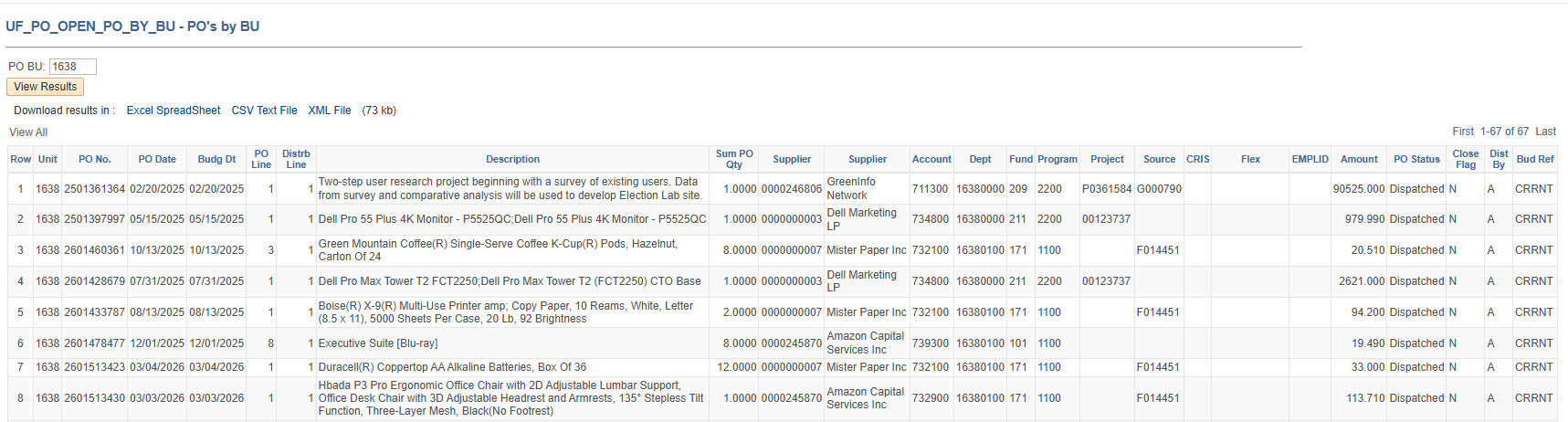
Other useful queries are:
KF_PO_CHARTFIELDS – enter a PO number and it will show all distribution lines/ChartFields and amounts on the PO.
UF_AP_PO_VOUCHER_LOOKUP – shows all vouchers on a PO
UF_AP_PO_VOUCHER_ACTIVITY – shows all vouchers on a PO
3. How can I start preparing now for PO Recon?
Check to make sure all your POs AND Invoices are in PSoft. Invoices in myUF Marketplace not in PSoft will not count as Activity and the PO may get closed in myUFL. Pending or Draft Change Order and Invoices in myUF Marketplace need to be completed and IN myUFL to count as Activity on the PO. Any POs with NO Activity since January 1, 2026, will be closed on October 15, 2026.
For any questions or assistance on TEAMS reviewing the PO Recon List, please open a ticket with the Finance Hub
Thank you!